Proceed to the Plan Room Issues page to view a list of the issues on a record. All issues that require attention should be in “Open” status.

Open the first issue you will respond to by clicking on it. If the issue is associated with a sheet or document, that sheet or document will display the issue details located on the left and markups (if any) located directly on the page. Issues and markups are color-coded by discipline.

Type a response to the issue in the section labeled Applicants Response. Please provide any details important to resolving the issue to help facilitate the review process then click Save
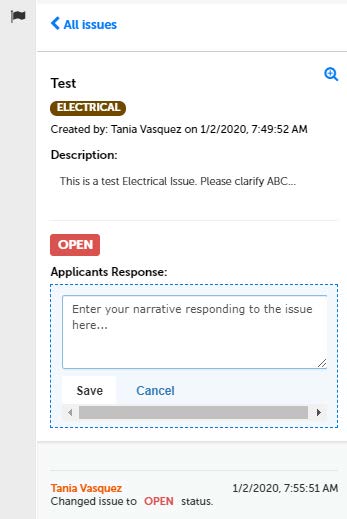
After clicking save, you will be brought back to the Issues page. The previous issue’s status will have changed to “Answered”. Repeat these steps until all issues are answered.
You must respond to all issues. You will not be able to proceed with a response submittal until all issues are answered. Partial responses are not accepted.

After all issues are answered, click the “Uploads” link to proceed with revised sheets submittal.

Note that a new Review Cycle Package is available. Click “Resume” to proceed with your upload.

Type a description for this new Review Package then click “Continue.”

Drag and drop or click “Browse” to select files for uploading.
Tip: Remember that you will now only be required to submit revised sheets. Full sets are not needed.

Select the document type from the dropdown menu, then type a concise description for each file. Click “Upload and Validate” when your file selection is complete.

Correct any file or signature issues (if present) and re-upload as necessary. Once all files have a status of “Validated,”proceed by clicking the “Process Files” link.

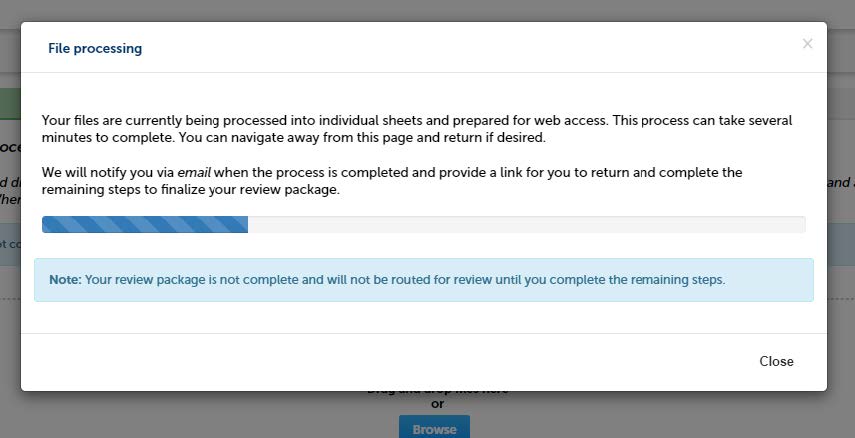
A pop-up will display your file processing progress. You may close the window if you choose. Once all files are processed, you will land on the sheet versioning page. Verify all sheet titles, make changes as needed, then click “Continue” to proceed.
It is extremely important that the sheet titles of the revised sheets uploaded match the sheet titles of the initial submittal. If they do not match, the revised sheet will not be recognized as a subsequent version of the original.

Tip: If you don’t remember the original sheet title, refer to the list of issues on the Issues page. The sheet title will be referenced in the “Attached To” column.

Confirm all necessary files are uploaded and all issues are answered. Click "Finish" to submit your response.

You will see a banner confirming that your submittal was successful. Department staff will be automatically notified of your submittal.
